Manage your team roster, send calendar invites, and track confirmations for each gig.
Adding Team Members
- From the gig details, scroll to the Team Members section
- Search your contacts or enter name, email, phone, and pay amount
- Click "Add" to add them to the gig
- Optionally set an arrival time and designate a Point Person
Sending Calendar Invites
Click "Send Invite" to email a calendar invite with gig details. The invite includes:
- Event date, time, and venue
- Pay amount
- Arrival time
- Any notes from you
Two-Stage Confirmation
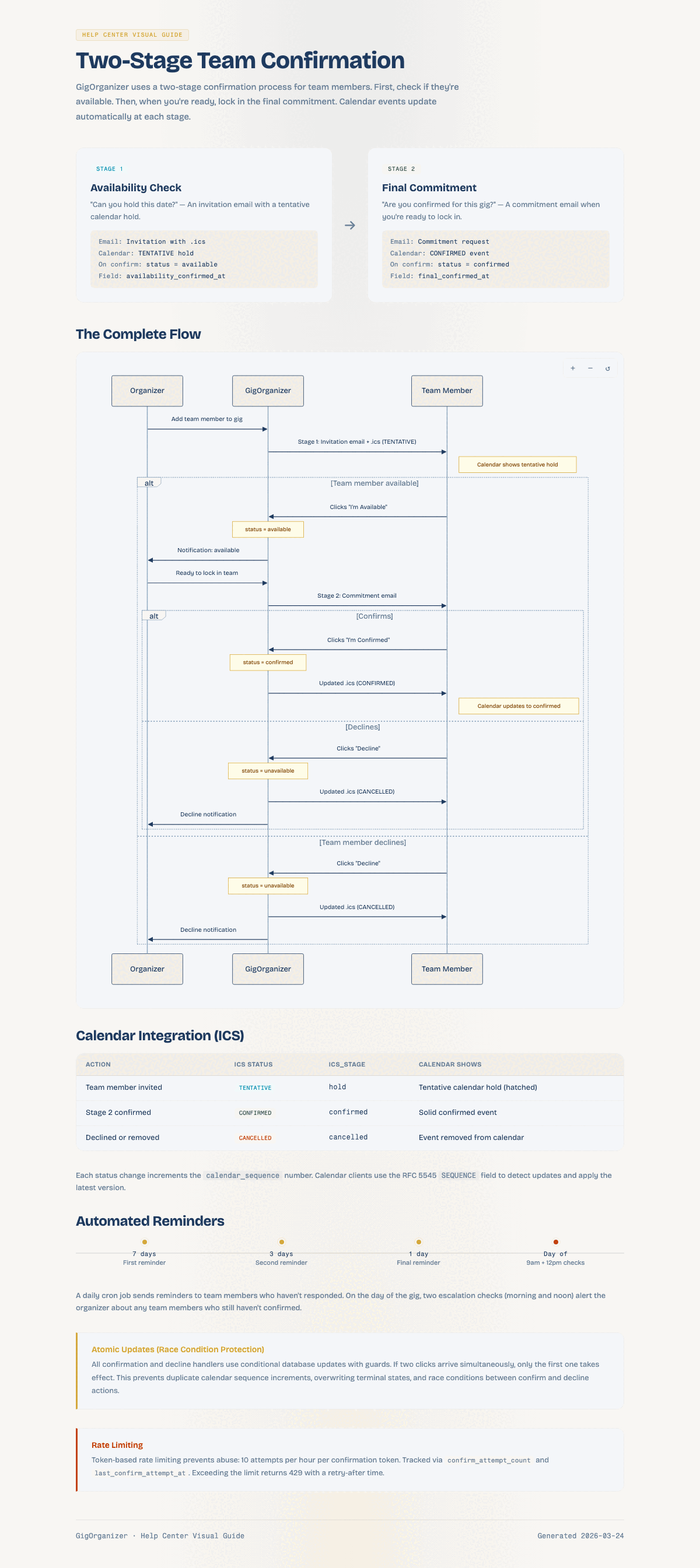
Team members go through a two-stage confirmation:
Stage 1: Availability
"Can you hold this date?" — They receive a TENTATIVE calendar event. Confirming availability moves them to "Available" status.
Stage 2: Final Commitment
"Are you confirmed for this gig?" — Confirming moves them to "Confirmed" status and updates the calendar event to CONFIRMED.
Status Meanings
| Status | Meaning |
|---|---|
| Invited | Calendar invite sent, awaiting response |
| Holding | Organizer manually placed a hold on this date |
| Available | Confirmed availability (Stage 1), not yet committed |
| Confirmed | Final commitment received (Stage 2) |
| Unavailable | Declined the gig |
My Team (Saved Roster)
Save team members for quick access on future gigs:
- Store default pay amounts per person
- Notes and contact info persist across gigs
- Search your roster when adding to new gigs
Common Questions
Do my team members see the contract?
No. They only see logistics (date, time, venue, pay) in their invite.
Can I resend an invite?
Yes, click "Send Invite" again.
What does "Holding" mean?
They've confirmed availability but haven't made a final commitment.